Photo to Video AI and the Shift from Still Images to Directed Motion 2024 صور خلفــيات
A carefully composed photograph already carries a great deal of creative work. The lighting establishes a mood. The framing directs attention. A product, person, or landscape gives the viewer something specific to remember.
Turning that image into a video introduces another set of decisions. What should move? How far should the camera travel? Which details need to remain recognizable throughout the shot?
These questions sit at the center of photo to video AI. A convincing clip needs movement that fits the image and serves a purpose. A drifting reflection can give a product photograph depth. A small gesture can bring warmth to a portrait. Moving water can extend the atmosphere of a travel image.
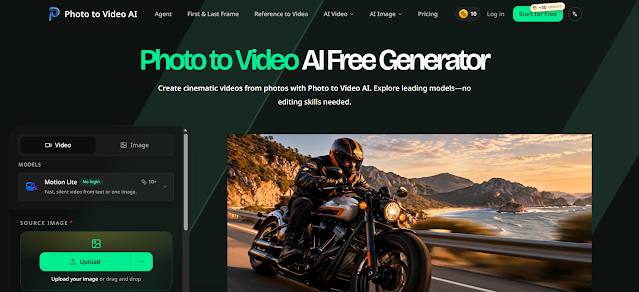
A browser-based workspace can bring the source image, motion prompt, model selection, and generation settings into one workflow. That is the approach behind Photo to Video AI.
The Photograph Already Contains Part of the Brief
Starting with an image gives the generation process a visible foundation. The subject, color palette, lighting, and composition are already present. The creator can concentrate on how that scene develops over time.
Consider a photograph of a perfume bottle beside a folded piece of fabric. A useful motion brief might ask for the fabric to lift gently while the camera moves closer. The bottle supplies the visual focus, and the movement gives the viewer a reason to keep watching.
The same approach works with a café portrait or an illustrated landscape. Begin with the strongest element in the picture, then choose an action that belongs in that setting.
Photo to Video AI accepts JPG, PNG, and WEBP images. A sharp source with readable edges and room around the subject gives the model clearer information. For a first attempt, choose a composition where the intended movement is easy to imagine.
Model Choice Becomes a Creative Decision
The platform includes dedicated marketing pages for Kling and Seedance, with compatible models available through its studio. Two concrete examples show how model settings affect the work.
Kling 3.0 for a Deliberately Structured Shot
Kling 3.0 supports clips from 3 to 15 seconds, with Standard and Professional modes and a sound control. These options let a creator make separate decisions about the length of the action, the selected generation mode, and the need for audio.
A five-second product shot provides a manageable starting point. Ask for one continuous camera movement and a small environmental change, then inspect whether the product remains convincing throughout the clip.
Duration deserves attention here. Each additional second extends the movement the model must generate and changes the credit requirement. Choose a length that gives the action enough time to read clearly.
Seedance 2 for an Image-Led Motion Brief
Seedance 2 is another selectable option with its own dedicated page. A supported starting configuration is four seconds at 480p with audio generation switched off. Access to this model requires a successful purchase.
That configuration gives a creator a specific way to explore a shot before adjusting the available settings. For a bottle photograph, the brief could combine a slow camera push with a soft reflection moving across the glass.
The model name supplies only part of the decision. Review the actual duration, resolution, audio setting, and credit estimate together. Those choices determine the generation you are requesting.
A Practical Photo to Video AI Workflow
1. Choose an Image with a Clear Job
Start by deciding where the clip will appear. A vertical social post and a widescreen website section call for different framing.
The platform offers formats such as 9:16 and 16:9 on compatible models, with square output available on some options. Select the framing supported by your chosen model and check how it relates to the source image.
A product should have space around the edges if the camera will move. A portrait should show the face clearly. A landscape should contain a visible element that can carry the motion, such as water, foliage, or clouds.
2. Write the Action and Camera Direction
A motion prompt becomes easier to evaluate when it describes a coherent shot. State what the subject does, how the camera moves, and which details should remain recognizable.
For a product image, an original example would be the following.
The fabric beside the bottle lifts gently in a light breeze. The camera moves slowly closer in one continuous shot. Keep the bottle silhouette, cap, and label placement consistent with the source image.
This gives the generation a defined action, a camera direction, and a preservation goal. The result can then be judged against those instructions.
Photo to Video AI also provides motion ideas and ready-made prompt starting points. Adapt them to the actual photograph so the requested movement fits the scene.
3. Check Settings and Cost Together
Choose the model, duration, resolution, and available sound settings before submitting the job. The form updates the credit estimate as supported controls change.
For an early attempt, concentrate on whether the movement and framing work. Once that direction is convincing, consider the higher-resolution options available for the selected model.
The platform offers 720p, 1080p, and up to 4K on supported models. Some higher-resolution outputs involve an upgrade step, so inspect the selected workflow when planning the final export.
4. Review the Entire Clip
Watch from the opening frame through the ending. Check the subject as the camera moves, especially when a turn or change of angle exposes details that were partly hidden in the photograph.
If the shot feels crowded, simplify the action. If the camera movement dominates the subject, reduce its scope in the prompt. Change one major instruction per iteration so the next result answers a clear creative question.
When the Shot Needs More Visual Guidance
A single image can establish the opening of a scene. Some ideas also need a defined destination or additional information about the subject.
Photo to Video AI includes a First & Last Frame workflow for supplying beginning and ending images. This can guide a product reveal, a transformation, or a before-and-after concept. The creator provides the two visual states and describes the movement connecting them.
Reference to Video accepts multiple images on compatible models. Additional views can help communicate a character’s appearance, a product’s shape, or the intended visual style. Upload limits depend on the model.
Choose the workflow according to the visual information your shot needs.
Where Photo to Video AI Fits into Everyday Content Work
Product Content
An existing product photograph can support a short promotional concept through controlled camera movement, fabric motion, or changing reflections. A small business can explore several visual directions from the same approved asset.
Keep packaging, proportions, and label placement in view during review. These details determine whether the clip represents the product accurately.
Portraits and Personal Memories
Portraits and family photographs lend themselves to restrained movement. A gentle gesture or subtle camera approach can create an intimate short clip for a greeting, anniversary, or personal keepsake.
Clear scans and well-lit faces provide a stronger starting point. Judge the finished animation by how naturally the movement fits the person and the mood of the original image.
Travel Images and Artwork
Travel photographs often contain elements that suggest movement immediately. Water, trees, and atmospheric detail can provide a focused brief. Illustrations can also become short animated scenes, with the prompt describing how the character or environment develops.
For these uses, Photo to Video AI gives creators a way to explore motion while working from an existing visual direction.
Budgeting for Iteration
The site offers signup credits, subscriptions, and one-time credit packs. Free-credit videos include a watermark, while paid plans provide watermark-free output. Model access and generation requirements vary.
Budget around the estimate displayed for each generation. Duration, resolution, model, and supported controls affect the amount used for a particular job.
Failed jobs return charged credits. Creating another version of a completed clip uses additional credits, so each revision benefits from a specific objective.
A strong photo to video AI process starts with an image worth developing, gives the scene a clear movement, and uses review to refine the result. The photograph establishes the visual direction. Each generation explores how that direction can unfold over time.


